
Users and roles Getting started
Inviting the people of your organisation, what an Admin and an Editor may do, and disabling a user.
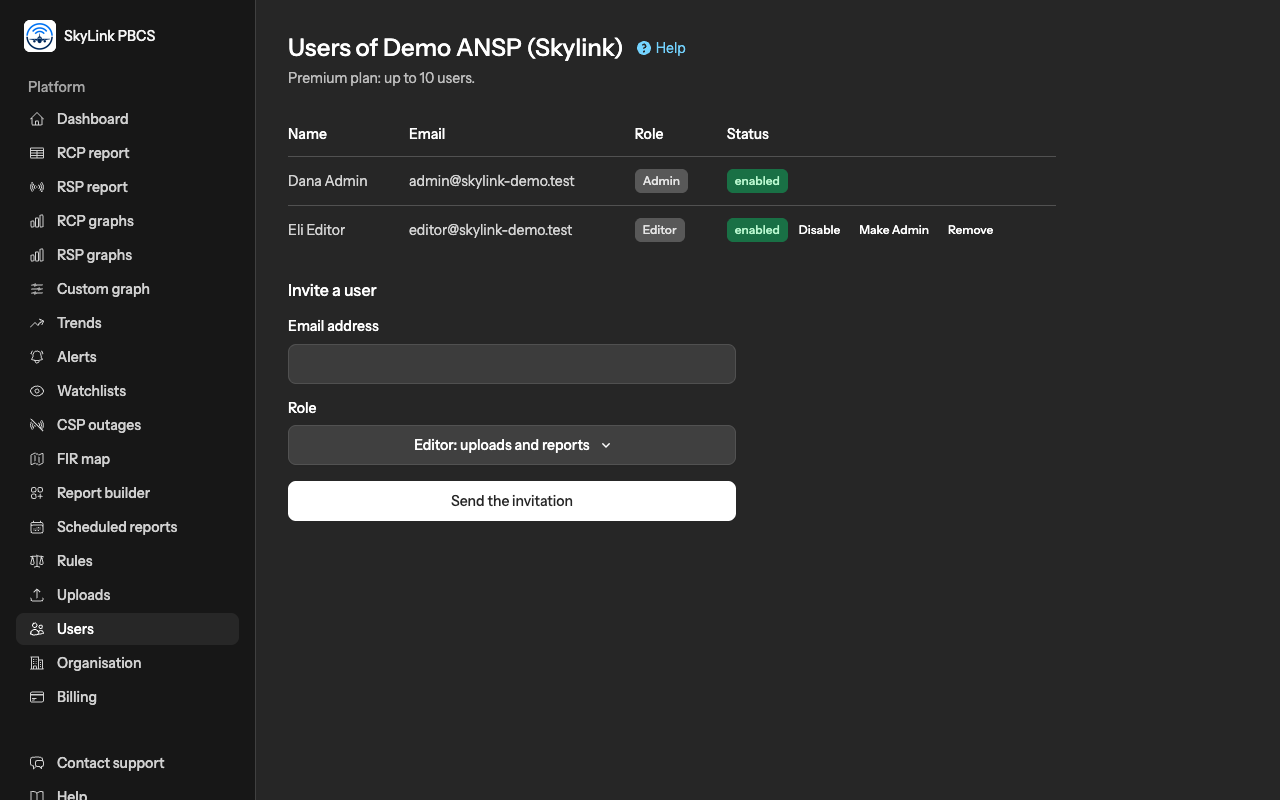
Every person who works with SkyLink PBCS for your organisation has their own login. The person who registered the organisation is its first Admin and invites the others from the Users page. How many users your plan allows is written under the heading of that page; a pending invitation takes one of those places until it is accepted or revoked.
The two roles
| Editor | Admin | |
|---|---|---|
| Read the dashboard, the reports, the graphs, trends, alerts, watchlists, the FIR map, the Rules page | yes | yes |
| Upload files, review and import them, replace and delete uploads; export reports; the report builder and scheduled reports; the alert rules | yes | yes |
| Record and import CSP outages | yes | yes |
| Declare how outages are handled, and the rest of the data setup | no | yes |
| Invite users, disable and enable them | no | yes |
| The organisation's details and invoice details | read | edit |
| Billing: the plan, the card, invoices, cancelling | read | manage |
| Purge all files or all data | no | yes |
An Editor who opens a page that is for Admins sees it read-only, or is told it is not available.
Inviting a user
- Open Users in the menu.
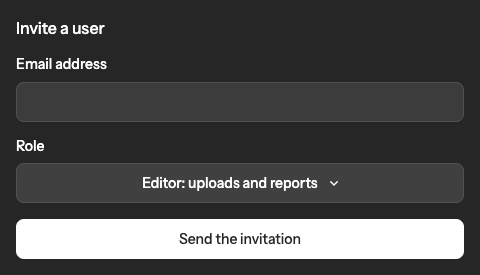
- Enter the person's email address, choose the role and press Send the invitation.
- The person receives an email with a link. The link works once and expires after 7 days. They enter their name and choose a password, and they are in; because the link reached their mailbox, the address counts as confirmed.
- Until the invitation is accepted it is listed as pending. Revoke cancels it and frees the place.
Two rules apply. An email address can belong to one organisation only, so an address that already has a login elsewhere cannot be invited. And the plan's limit counts the enabled users plus the pending invitations; when it is reached, disable or revoke someone first, or move to a larger plan on the billing page.
Disabling, changing a role, removing
Disable keeps the person's account and history but closes the portal to them, and frees their place in the plan's count. Enable opens it again, within the limit.
Make Admin and Make Editor change a user's role at once; the change is logged. Remove deletes the user for good, after a confirmation: their login no longer exists, their sessions end, and what they did stays in the log under their name.
Three rules protect the organisation: you cannot disable, change or remove yourself; at least one enabled Admin always stays, so the last one cannot be demoted or removed; and the only Admin cannot delete their own account from their profile until another Admin exists.
If the invitation never arrives
Ask the person to look in their spam folder for a message from SkyLink PBCS. If it is not there, revoke the invitation on the Users page and send it again; the new link is a new email. Make sure the address is spelled as the person's mail system expects it.
What each person should set up
After the first sign-in, every user should open their account page and consider a second factor: a code from an authenticator app, or a passkey. An organisation's reports are sensitive; two factors keep a leaked password from being enough.
Not answered here? Write to us.