
Organisation and data setup Your organisation
The organisation page, its invoice details and FIR slots, and the data setup in which you declare where your files come from and how they are written.
Two pages describe your organisation to SkyLink: Organisation, with its names and invoice details, and the data setup, a short questionnaire about your files. Both are in the menu under Organisation. An Admin edits them; an Editor can read them.
The organisation page
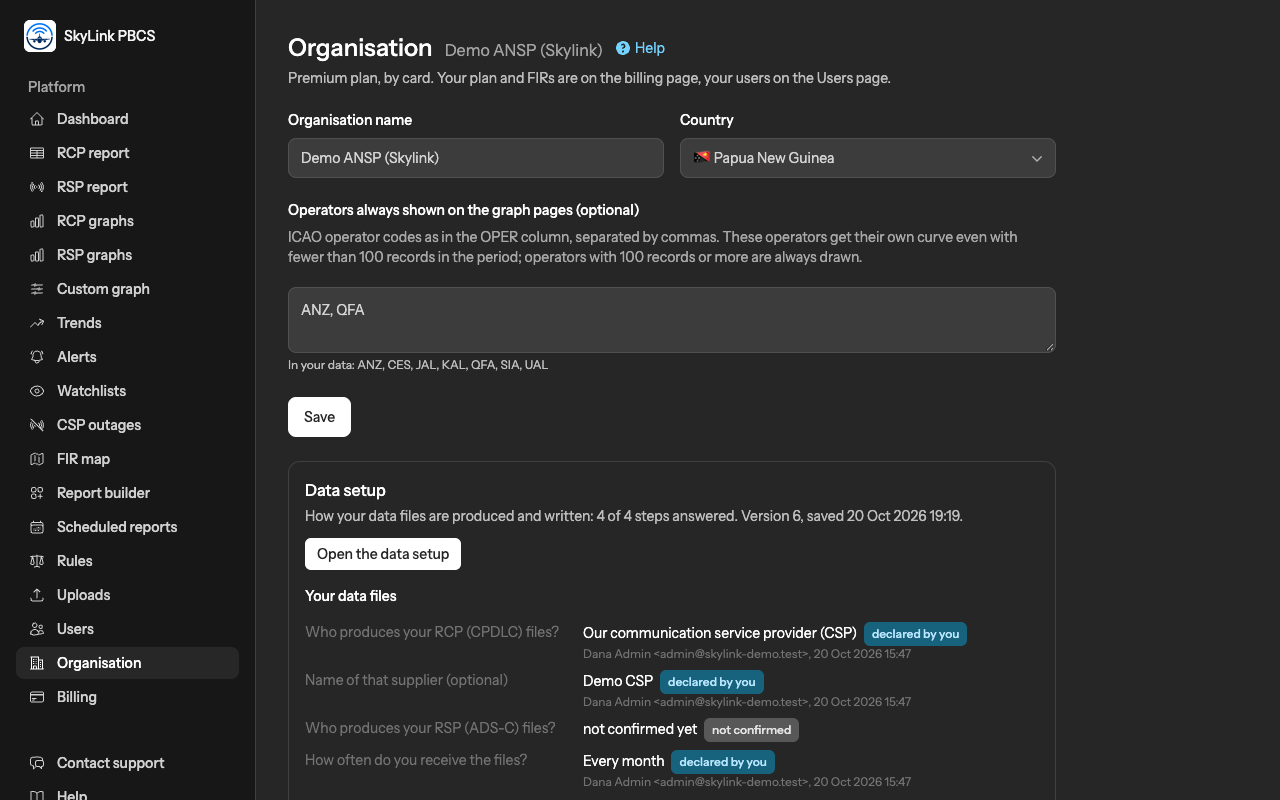
- Organisation name is what every page and every email of yours shows. ANSP name, if different is for an organisation that reports under another name.
- Invoice details are printed on your invoices from the next one: the legal business name, the billing address and country, the billing contact and, if you have one, a tax number. Invoices already issued do not change.
- Operators always shown lists the airline codes that the graph pages keep on every chart, whatever the selection. Leave it empty if you do not need it.
- Documents behind the setup is where you attach what supports your data setup: a note from your supplier, an extract of a specification, an email. Up to 5 MB each, in common formats. We read them when we verify your setup.
Your FIRs are not on this page: the FIR slots of your plan are on the billing page, where an Admin fills a free slot. A chosen FIR stays locked; write to us if it must change.
The data setup
The data setup tells SkyLink where your files come from and how they are written. It is a questionnaire of four steps and a summary, saved as you go, and it can be finished later. Every answer offers Not confirmed yet: choose it whenever you do not know, because nothing is assumed from a blank, and a guess is worse than an honest "not yet".
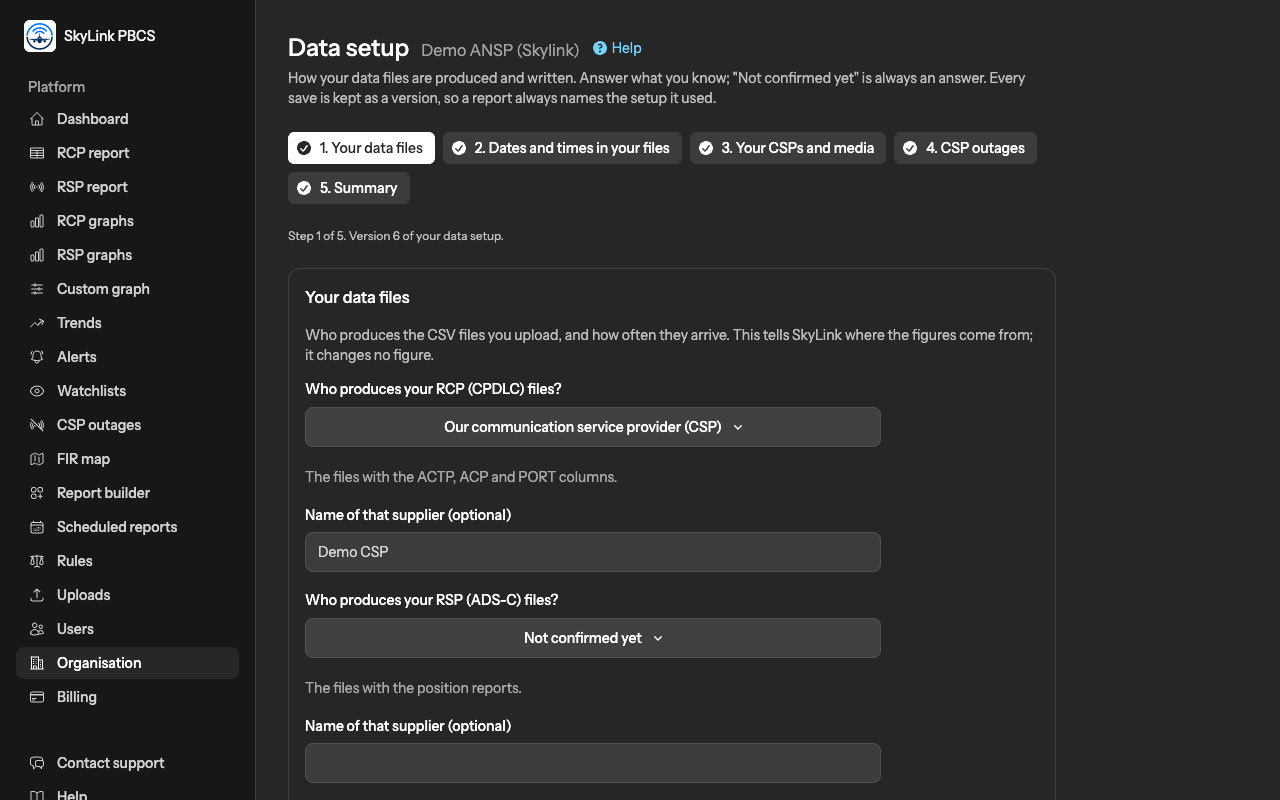
- Your data files. Who produces your RCP (CPDLC) files and your RSP (ADS-C) files: your communication service provider, your own ATM or data link system, the regional monitoring agency, or someone else; and how often the files arrive. This changes no figure; it tells us where the figures come from and sets the "upload expected" reminder.
- Dates and times in your files. The time zone of the DATE and time columns, how the DATE column is written and how the time columns are written. The GOLD records data link performance in UTC; your supplier may differ. Today the zone changes no RCP or RSP figure, because the measures are durations already in the file; it matters for matching outages and for the day a record belongs to. If you leave the date format unconfirmed, the review step of your first upload detects it and asks you to confirm it once.
- Your CSPs and media. The names of the communication service providers that carry your data link, as you want them shown when an outage is recorded, and the media in use: satellite, VHF, HF.
- CSP outages. How outages are handled in your files: your supplier removes the affected transactions and reports before the file is produced; you record outages here by hand; you import outage notices from a file; or you do not track them. And where you learn of outages. This is the one step that can change a figure, so answer only what you know; see CSP outages.
- Summary. Everything you declared, each line with its state.
Declared, verified, not confirmed
Every answer carries a state, shown wherever the answer matters:
| State | Meaning |
|---|---|
| not confirmed | Not answered, or answered "Not confirmed yet". Nothing is assumed. |
| declared by you | An Admin of yours gave the answer. It is shown with your reports but does not change a figure. |
| verified by SkyLink | We checked the answer with you, your supplier or the documents you attached. Only a verified answer can change a figure. |
The distinction protects your reports: a setting that affects a figure, such as the handling of outages, is applied only after we have verified it. Until then, your reports say that the setting is declared but not yet verified.
Versions
Every save is a new version of the setup, numbered, with the name of the person who saved it and what changed. Versions are never edited or deleted. A stored report names the version that was in force when it was made, so a later change to the setup never alters an earlier report. The versions are listed at the bottom of the organisation page.
What to do first
Fill in the data setup before your first upload, even partly: the date format saves a question at the first review, and the CSP names make an outage quick to record. Then attach the documents that support what you declared, and tell us through the contact page when you are ready for the verification.
Not answered here? Write to us.