
Your account Getting started
Your name and email address, your password, two-factor codes and passkeys, the appearance of the site, and what deleting your account means.
Your account settings are behind your name at the bottom of the menu: on a computer the menu under your name, on a phone the menu at the top right. Settings has three pages: Profile, Security and Appearance.
Profile: your name and email address
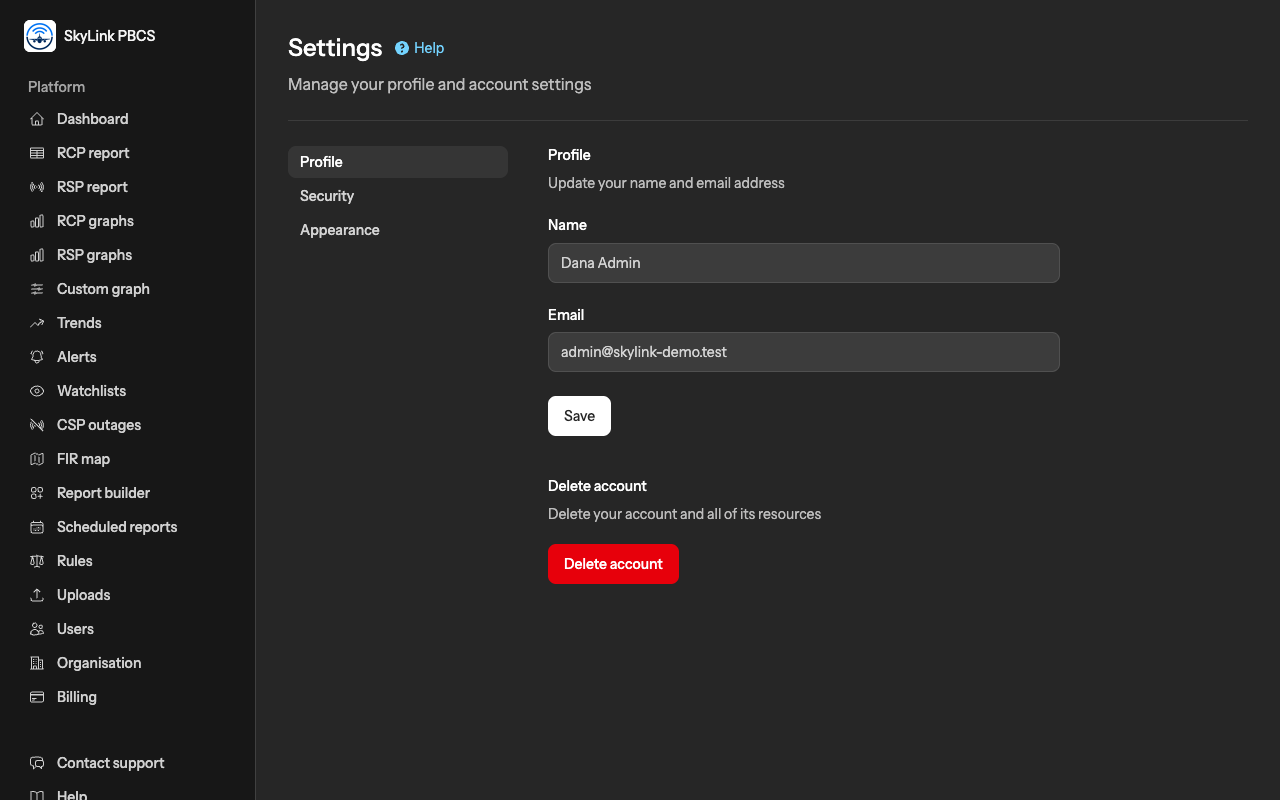
Change your name or your email address and press Save. A new email address is unconfirmed until you click the link we send to it; until then the page says so and offers to send the link again. Your login is the email address, so sign in with the new one once it is confirmed.
Security: password, two-factor codes and passkeys
The Security page asks for your password before it opens.
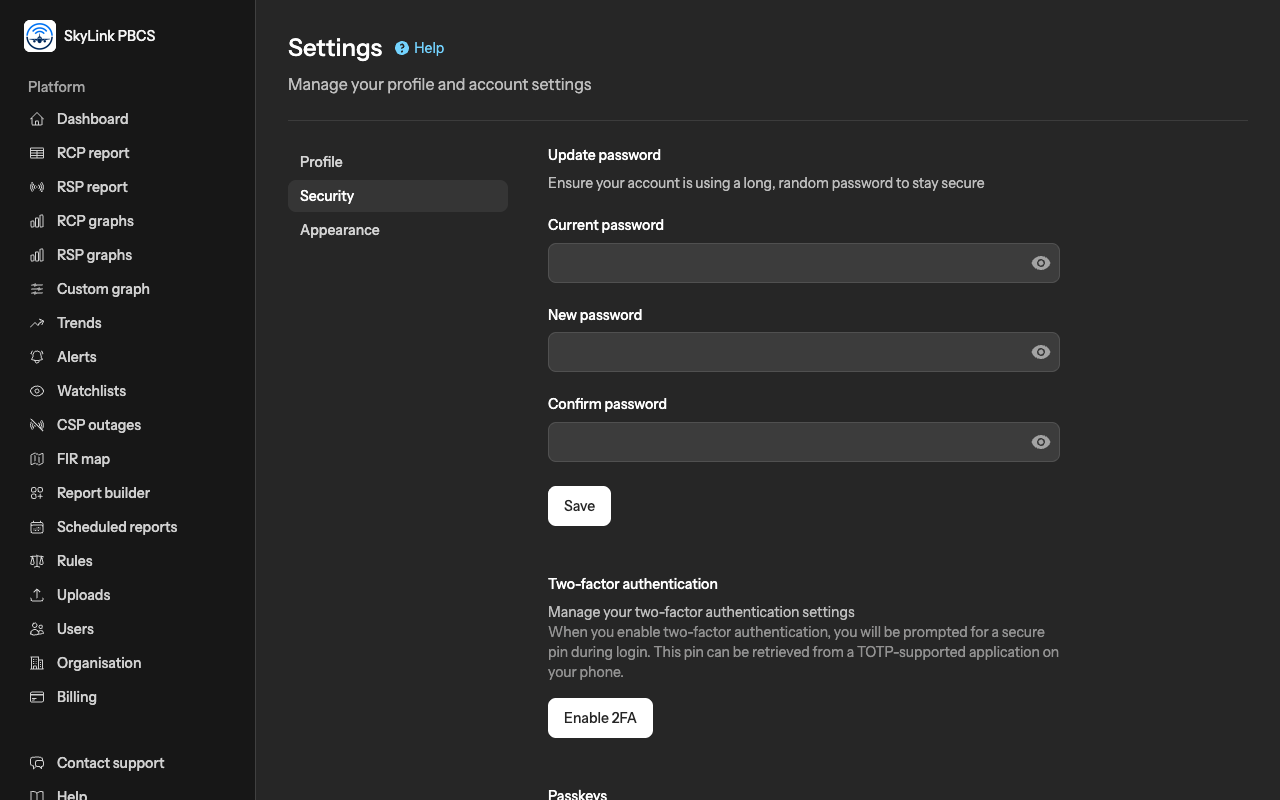
Password. Enter the current password, then the new one twice. Use a long password that you use nowhere else; a password manager makes that easy.
Two-factor authentication. Press Enable 2FA. The page shows a QR code and a setup key: scan the code with an authenticator app on your phone (Google Authenticator, Microsoft Authenticator, 1Password, Authy and others work), then type the six-digit code the app shows to confirm. From then on, signing in asks for your password and then for the current code from the app.
The page also shows your recovery codes: single-use codes that let you in if you lose the phone. Store them in your password manager or print them; the page can regenerate them, which makes the old ones invalid. At sign-in, the link login using a recovery code takes one of them instead of the app's code. Disable 2FA switches it off.
Passkeys. A passkey lets you sign in with your device's own unlock, Face ID, Touch ID, Windows Hello or a security key, instead of typing a password. Press Add a passkey, let the device save it, and give it a name you will recognise. The sign-in page then offers Sign in with a passkey. Remove a passkey from the same page when you replace the device.
Appearance
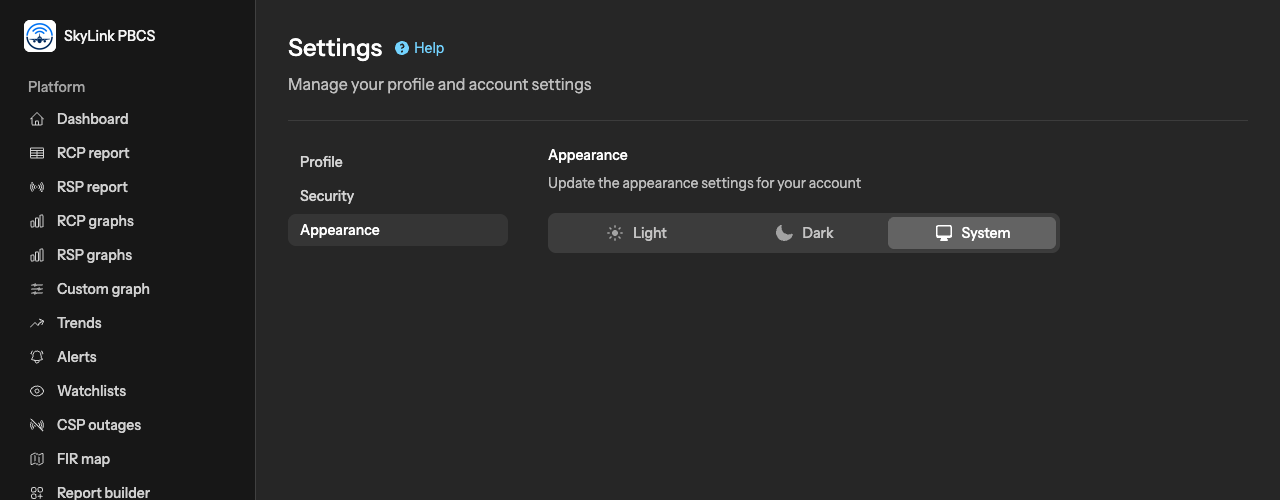
Choose Light, Dark or System; System follows your device's setting. The choice is yours alone and is kept in your browser.
Forgotten password
On the sign-in page, Forgot your password? sends a link to your email address; the link opens a page where you choose a new password. The link is valid for a short while; ask for a new one if it has expired.
Deleting your account
At the bottom of the Profile page, Delete account removes your login at once, after you confirm with your password. Your organisation's files, reports and settings are not touched: they belong to the organisation, not to you. If you are your organisation's only Admin, the page refuses until another Admin exists: make one on the Users page first, so that the organisation keeps someone who can manage it.
Not answered here? Write to us.