
Uploads Your files
The RCP and RSP files and their columns, the size limits, the review step, the statuses, an upload's page, and deleting.
Everything SkyLink reports comes from the CSV files you upload: one file per month and per type is the usual rhythm. An Editor or an Admin uploads; the Uploads page lists every file with its type, its date, its rows and its status.
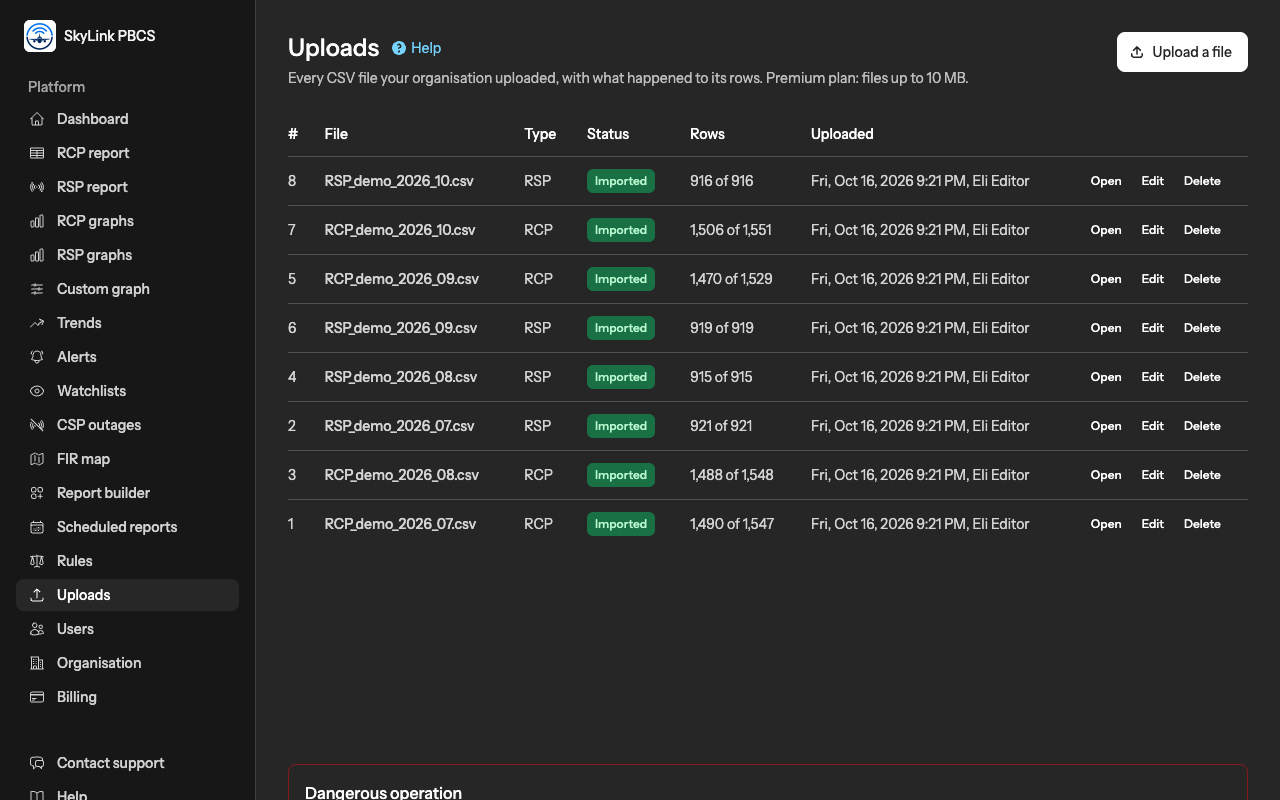
The files
Two types of file exist, in the data-collection layout your ground system or your supplier produces, as CSV with a header row:
- RCP, the CPDLC transactions, with the measured times ACTP, ACP and PORT.
- RSP, the ADS-C position reports, with the report transit time.
The columns SkyLink needs are below; a file may carry more, and the order does not matter. Column names are matched to these fields at the review step, so a file whose names differ slightly still imports.
| RCP file | Needed for |
|---|---|
| ANSP | The FIR of the record; records of other FIRs are discarded |
| DATE | Every page |
| COMTYP | The media type (SAT, VHF, HF and the mixed codes) |
| ACP, ACTP | The RCP tables and graphs |
| OPER, TYPE, REG | The operator, aircraft type and registration, for the charts and filters |
| PORT | The PORT table |
| UL_IDENT, DL_IDENT and the time stamps | The transaction filters and the consistency checks |
| RSP file | Needed for |
|---|---|
| ANSP | The FIR of the record |
| DATE | Every page |
| COMTYP | The media type |
| REPORT_TRANS_TIME | The RSP tables and graphs |
| OPER, TYPE, REG | The charts and the log of skipped rows |
| LAT, LONG | The heatmap |
| RGS and the time stamps | The consistency checks |
The first four of each list are mandatory: a file without them is refused, and a row with one of them empty is rejected at import. Your plan sets the size of a file: 5 MB on Standard, 10 MB on Premium, 50 MB on VIP, roughly 50,000 to 500,000 rows.
Uploading
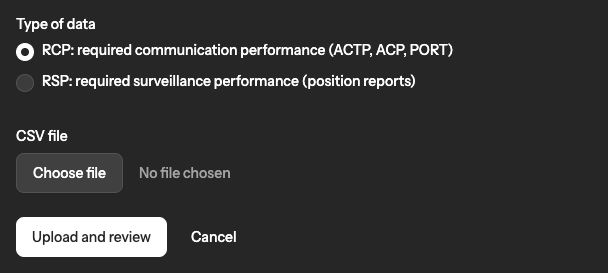
- Press Upload a file, choose the type, RCP or RSP, and the file.
- The file is stored encrypted and checked. It is refused on the spot if it is larger than your plan allows, if it cannot be read as a CSV with a header row, if a mandatory column is missing, or if the same file was uploaded before; the message says which.
- The review page opens. Nothing is imported until you confirm it there.
The review step
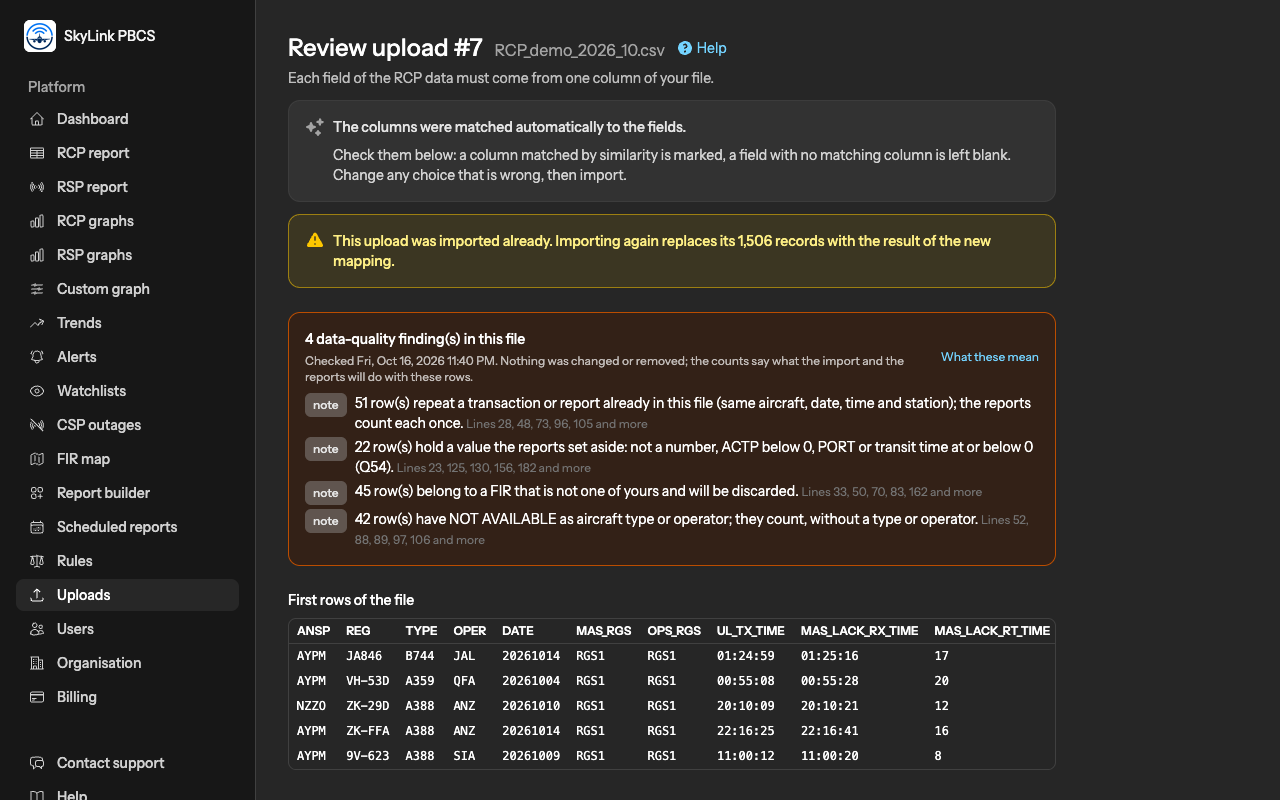
The review shows the first rows of the file and, for every field, the column of your file that was matched to it: by name, by a known alias, or by similarity, in which case the page asks you to check it. Change a match from the list; mark a field as not in this file where that is so. Mandatory fields must have a column.
The page also shows the date format it read from the DATE column, YYYYMMDD or YYYY-MM-DD or one of the day-first and month-first forms, with examples from your file. The first time, tick Use this format for every file of the organisation and the format is written into your data setup; later uploads skip the question. Untick it to use another format for one file only.
Below the matching, the data-quality findings of the file are listed: rows that will be rejected, dates that look wrong, duplicates, rows already in an earlier upload, and more. They are explained in Data quality. Read them, then press Import.
Statuses
| Status | Meaning |
|---|---|
| refused | The file was not accepted; the reason is on its page. Nothing was stored for the reports. |
| awaiting review | Stored and checked; waiting for you to confirm the columns. |
| importing | The import runs; reload the page in a moment. |
| imported | Done; the rows are in the reports. |
| failed | The import stopped; the reason is on the page. Fix the file or the columns and import again. |
An upload's page
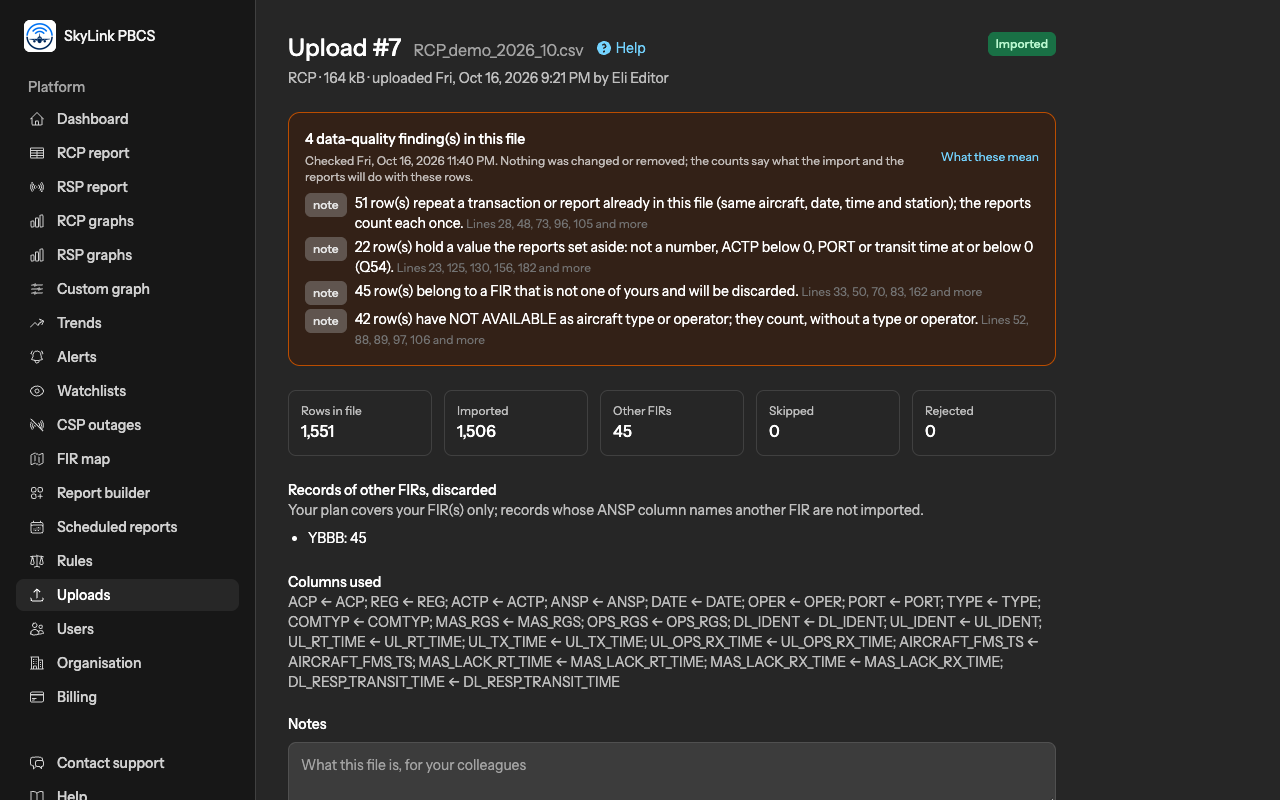
Open an upload for its counts: rows in the file, imported, rejected, skipped, and the records of other FIRs that were discarded. It also shows the columns used, the findings, a download of the stored file, and notes where you can write what the file is for your colleagues. Edit the columns reopens the review for the same file: a corrected match imports the file again, replacing its earlier rows.
Uploading a file twice does nothing: the second copy is refused as already uploaded. To replace a month, delete the earlier upload and upload the new file.
Deleting
Delete on an upload removes its rows from the reports and its file; the entry stays listed as deleted, so the history of what was uploaded is kept. Purge all files does the same for every upload at once. Purge all data, for Admins and behind a typed confirmation, deletes every upload, every row, every summary and the history for good. All three are permanent; there is no undo.
Not answered here? Write to us.