
Getting started
What SkyLink PBCS does, how to register and sign in, and what the free month covers.
SkyLink PBCS turns the CSV files your ground system produces into the RCP and RSP performance reports your region asks for; the glossary explains every term. You upload the files, the service checks them, and the tables, graphs and dashboards are ready for every user of your organisation.
What you need
- The RCP and RSP data-collection files of your flight information region, in CSV form. The Uploads article lists the columns.
- One person to register the organisation. That person becomes its first Admin and can invite the others.
- A card, or an agreement with us to pay by invoice. Nothing is charged during the first month.
Registering your organisation
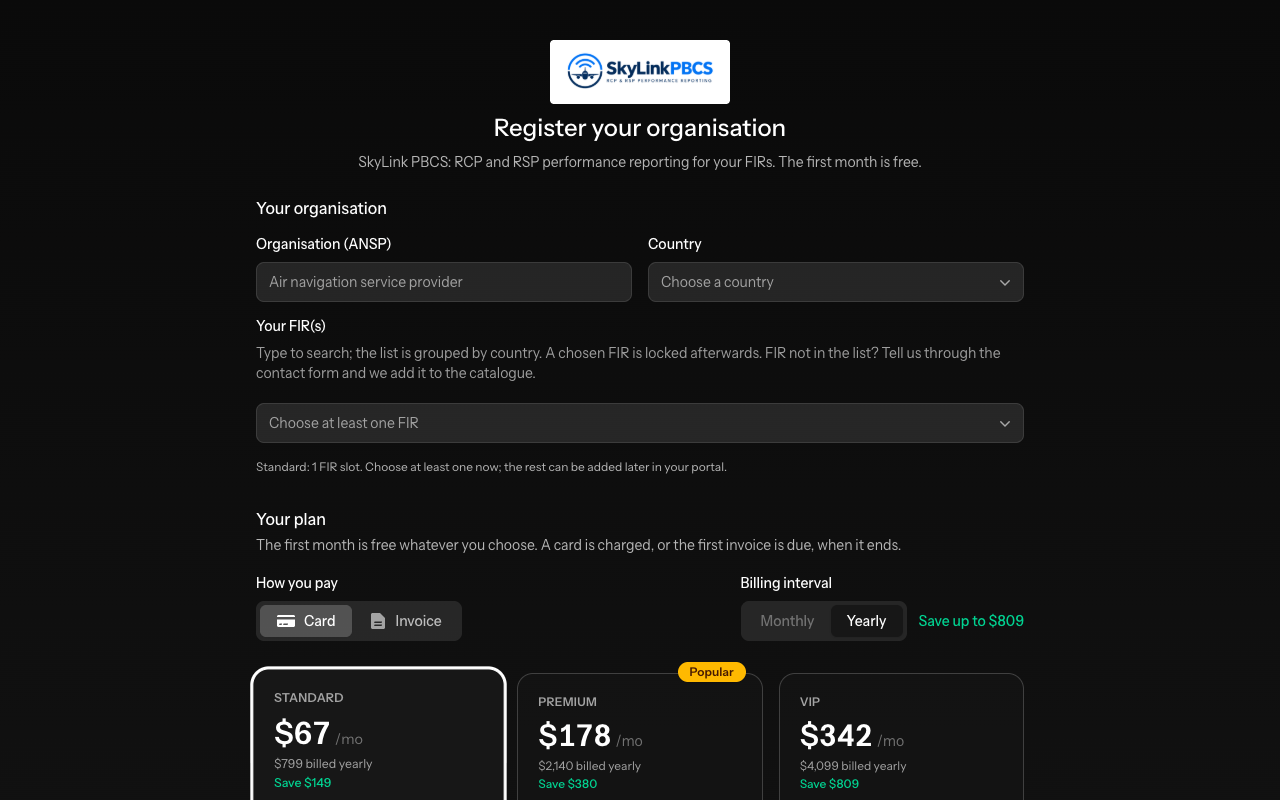
- Open the registration page. Enter the organisation's name and country, and choose the FIR, or FIRs, it reports on. A FIR is locked once chosen; tell us through the contact page if it needs to change. The other slots of the plan can be filled later from the billing page.
- Choose how you will pay, by card or by invoice, and the billing period: monthly or yearly for a card, every six months or yearly for invoices. Then choose a plan. The plans differ in how many FIRs, users and file sizes they allow; the comparison is on the home page.
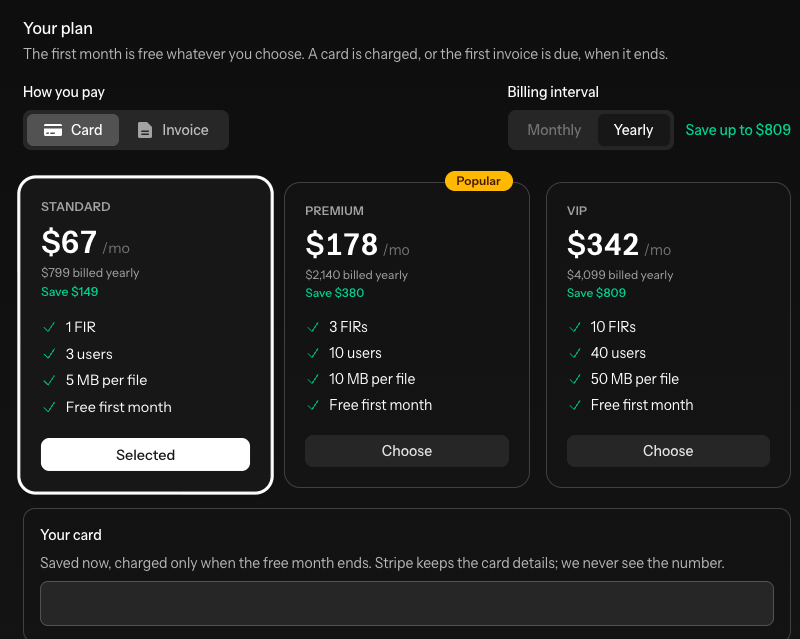
- A card customer enters the card now. It is saved, not charged. An invoice customer enters the details that go on its invoices.
- Enter your own name, your email address and a password. You become the organisation's first Admin.
- Accept the terms of service and the privacy policy, and register.
We send a message to your email address. Click the link in it to confirm the address; until then, the service shows only that page.
The free month
The first month is free for every plan, with everything the plan includes. For a card customer the card is saved now and charged for the first term when the month ends; for an invoice customer the first invoice is sent before the month ends and is due on that day. The Billing article explains what happens if a payment is late.
Signing in
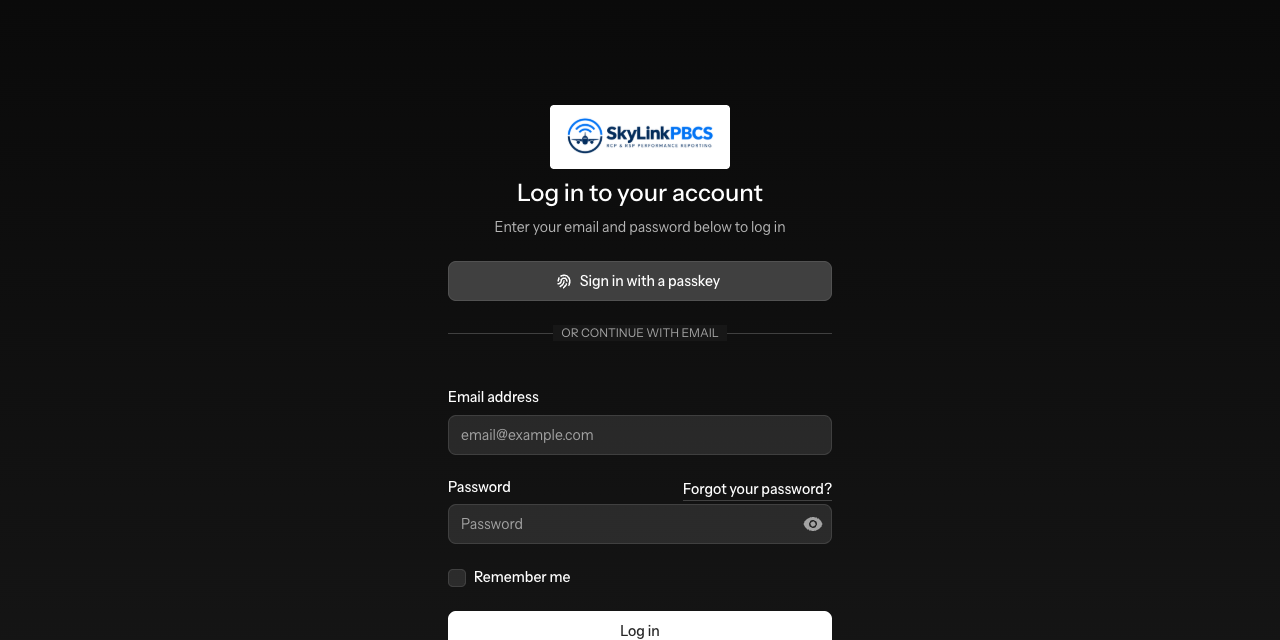
Sign in at /login with your email address and password. Your Admin can also ask you to add a second factor: a code from an authenticator app, or a passkey stored on your device. Both are set up on your account page.
Where things are
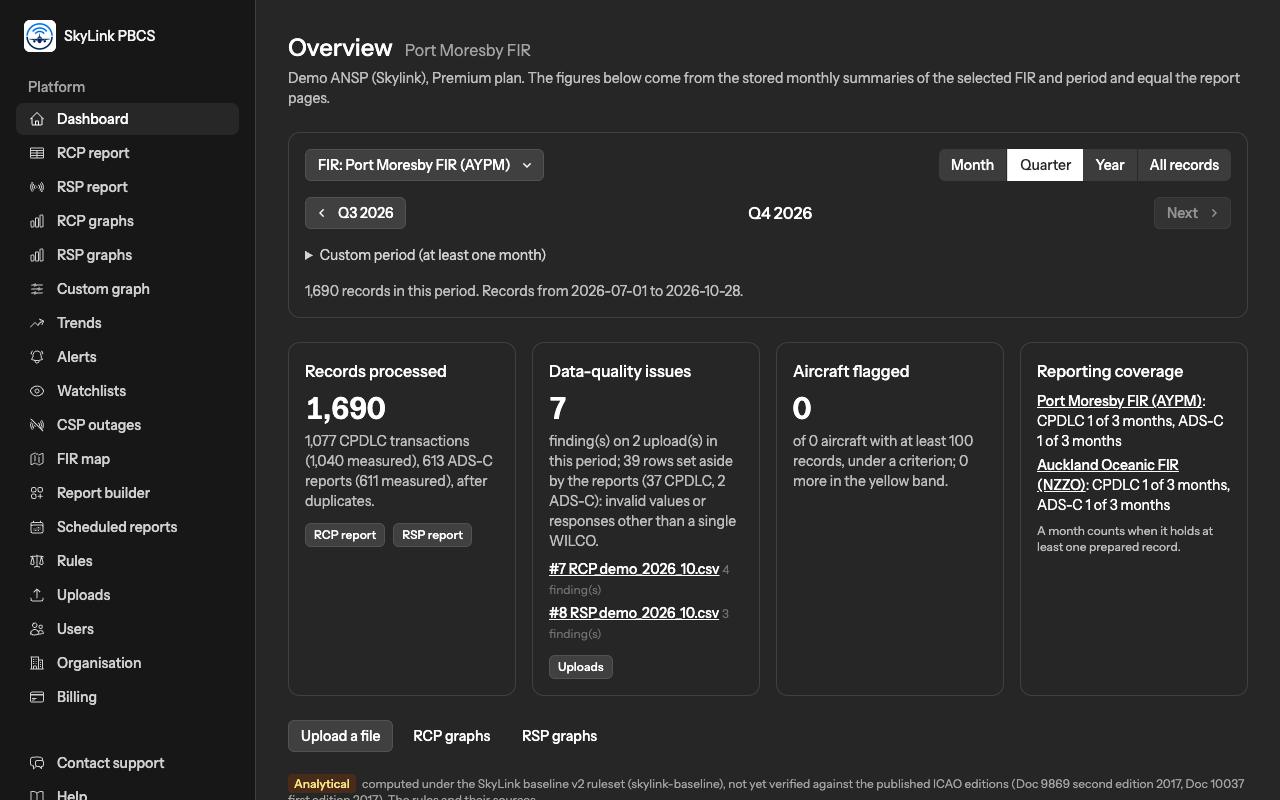
The menu on the left is the same for everyone in your organisation:
- Dashboard: the figures of the selected FIR and period, with the data-quality findings and the aircraft flagged.
- RCP report, RSP report, graphs: the tables and curves of the regional report layout.
- Trends, Alerts, Watchlists, FIR map, Report builder, Scheduled reports: the monitoring tools.
- Rules: the rules behind every figure, and their sources.
- Uploads: your files, their checks and their status.
- Users, Organisation, Billing: the organisation's people, its details and data setup, and its subscription. Admins only.
On a phone the same menu opens from the button at the top left.
What to do first
- Fill in the data setup: who produces your files, how they write dates and times, and how you handle CSP outages. Nothing changes a figure until we have verified it with you.
- Upload a file and read its review page before confirming the import.
- Open the RCP or RSP report for the month of that file.
If anything is unclear, the contact page reaches us, and every page of this help has a link to its neighbours at the bottom.
Not answered here? Write to us.